 NB Renamer Manual
- Quick Start
- User Interface
- Operations
- Parameters
- Batch Renaming Using a CSV File
- Adhoc Renaming
- Preferences
Quick Start
User Interface
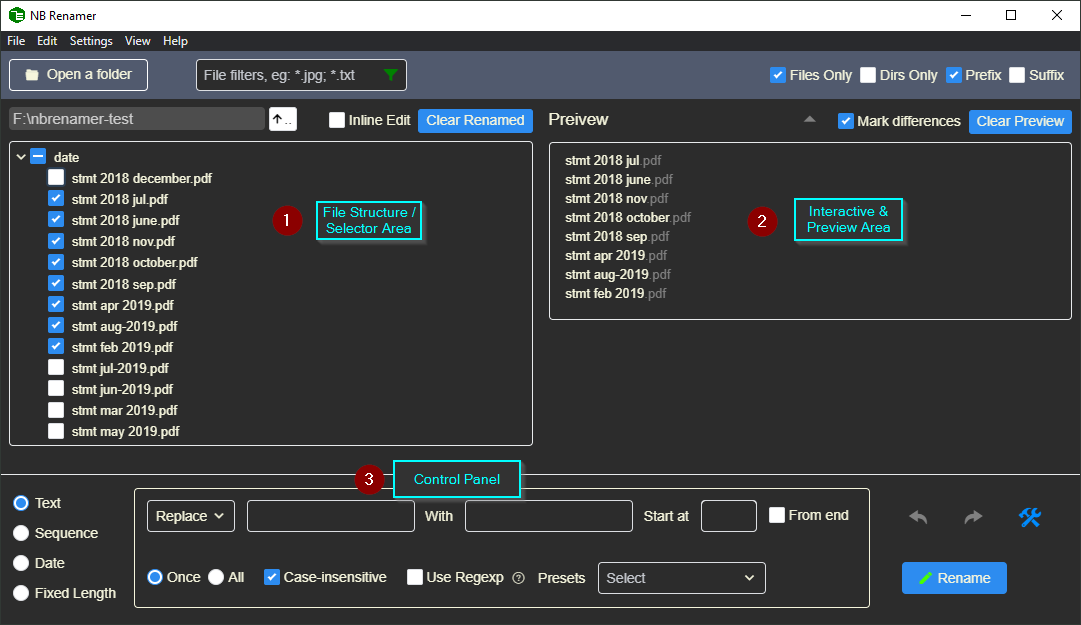
- Selector Area - Shows folder structure. You can select the files to work on.
- Preview Area - Two-way interaction.
- Parameter changes in the Control Panel are previewed
- Clicking or selecting file names populates parameters in the Control Panel
- Control Panel - Operations and parameters that control how you want the files to be named
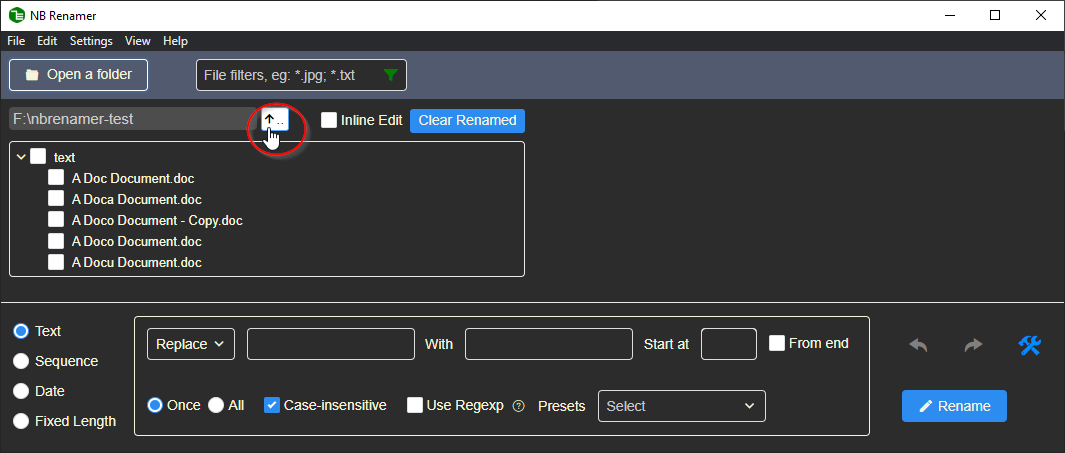
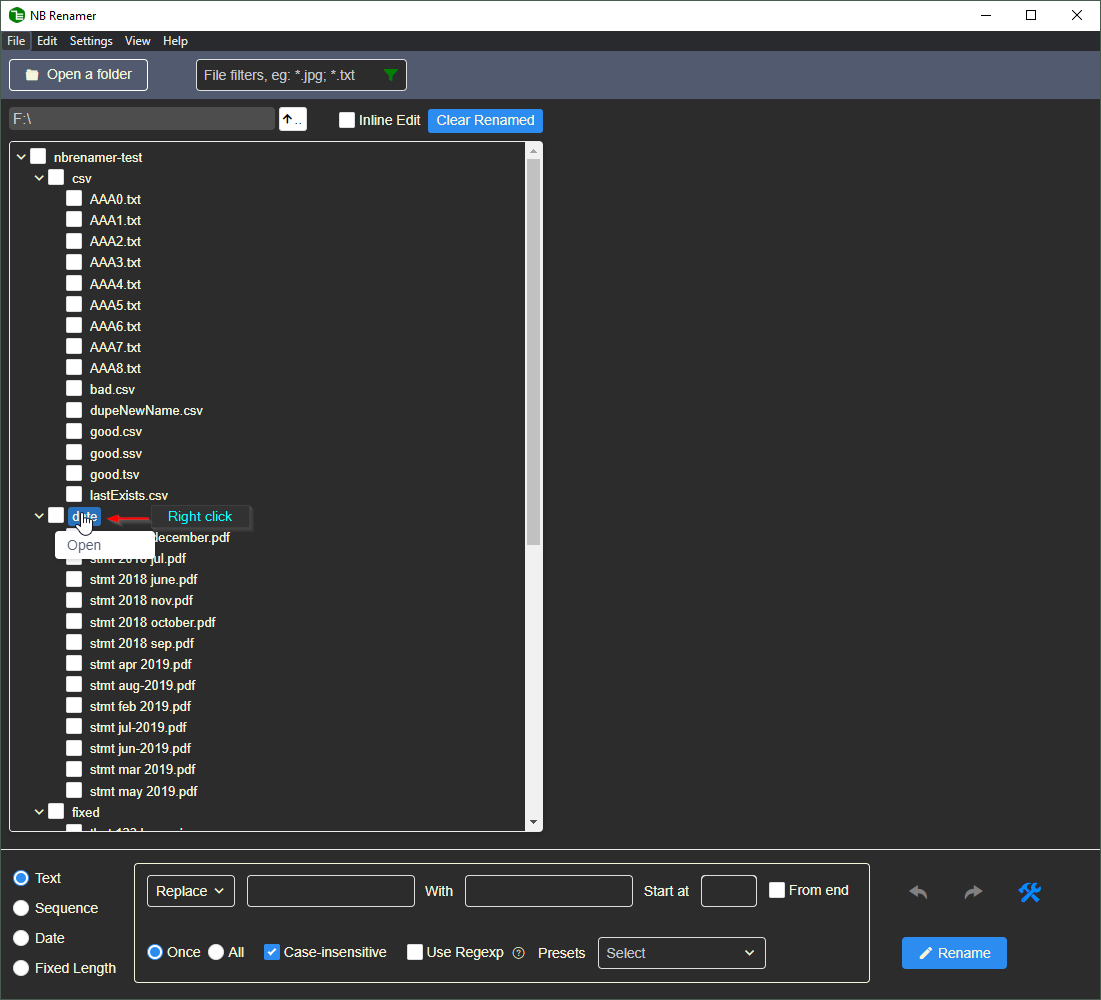
Directory Navigation
- Go to the parent directory
- Go to the sub directory
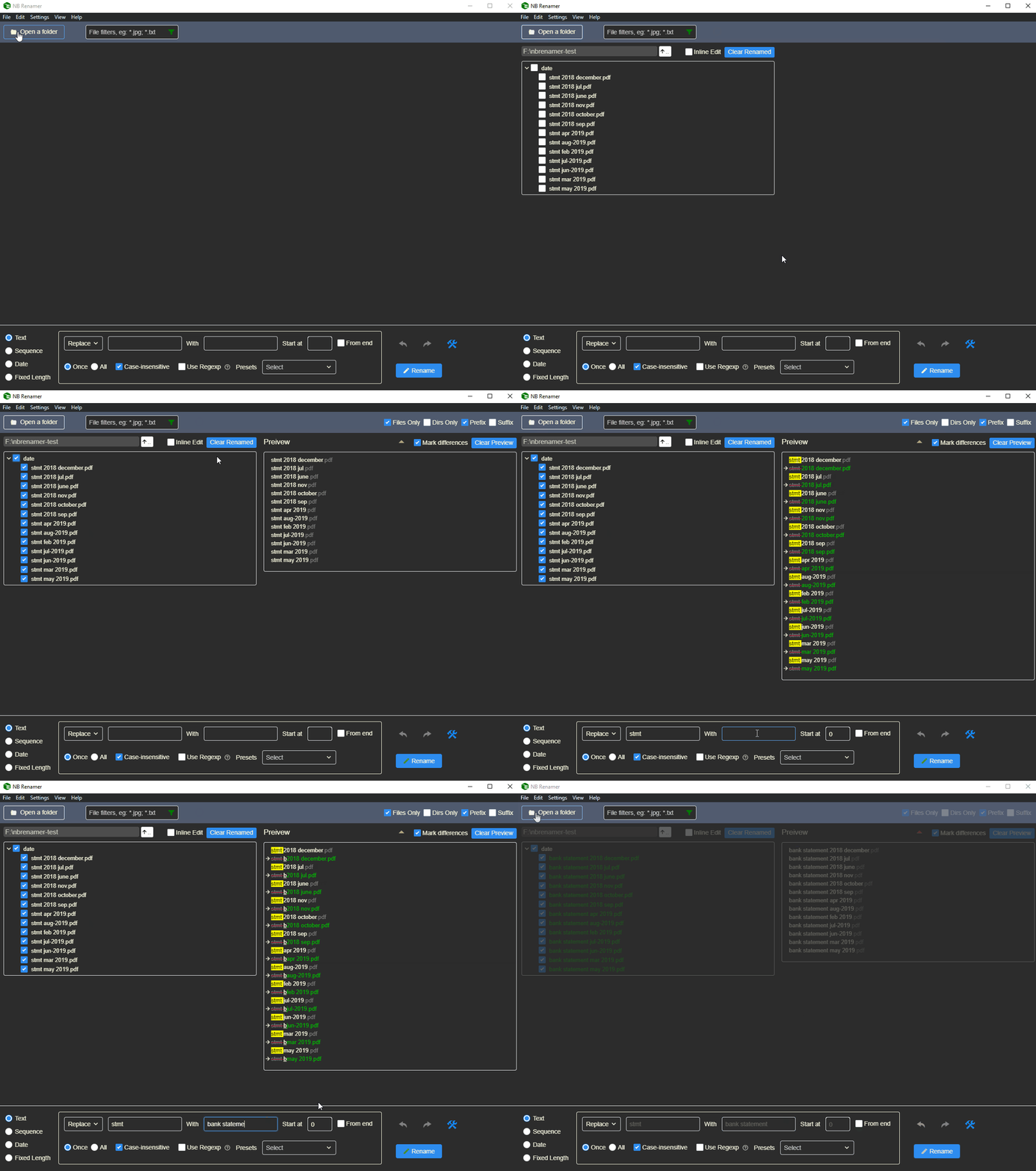
Multiple File Selection
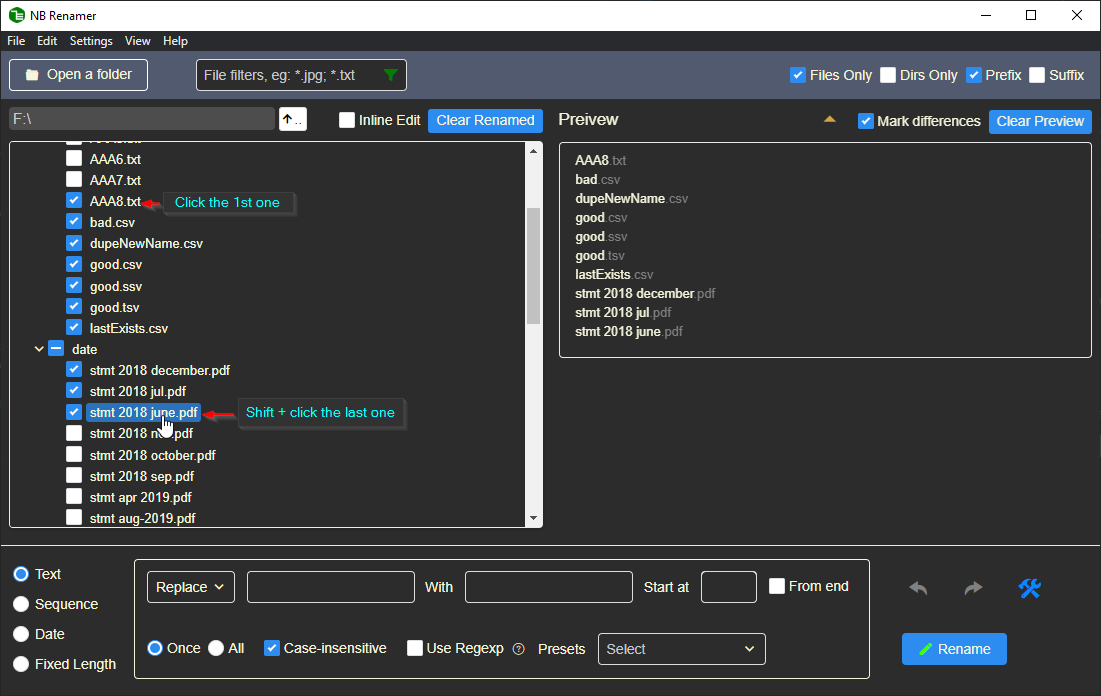 To unselect multiple files, just repeat the above steps again.
Preview Panel Interactivities
- Click on file name - Set the beginning of the range using cursor’s position
- Right click on file name - In Move operation, set the destination position using cursor’s position
- Select on file name - For text, it’ll be the text to replace or move; for section, it’ll set the section’s start and length
- Mark differences - Shows what will be deleted / added to the original name
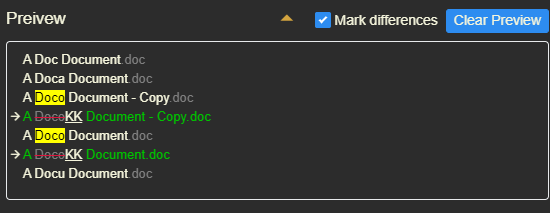
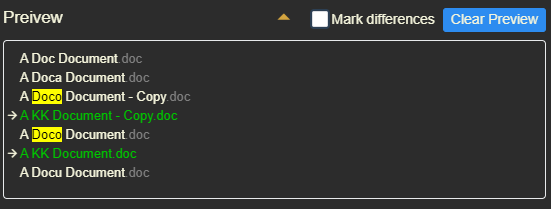
Turning off Mark differences will just show the end result
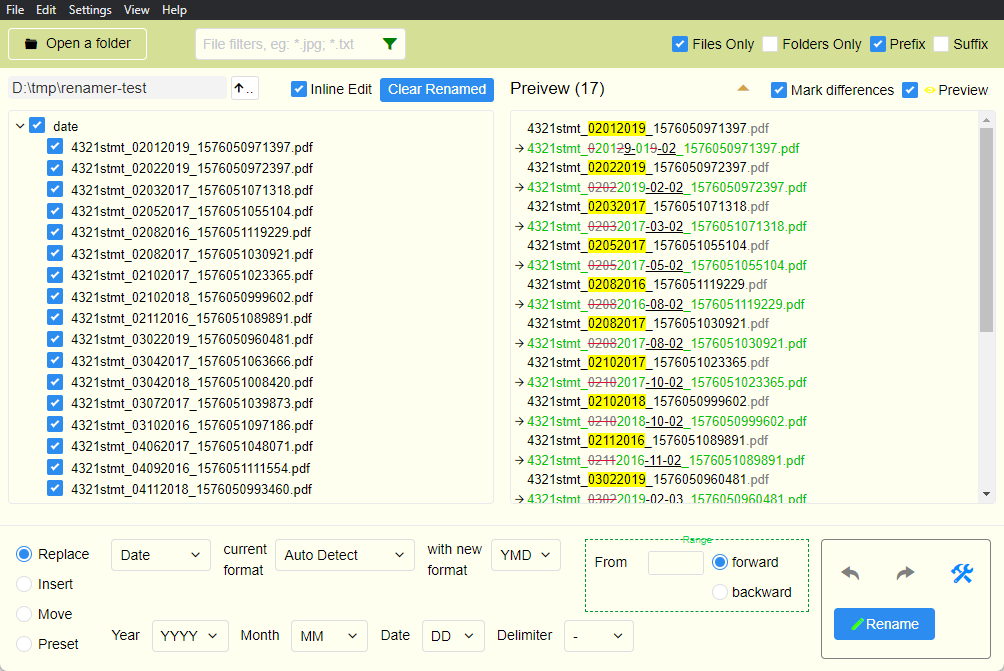
Light Theme
You can choose the light theme in settings if you don’t like the default dark theme. ☛ General
Operations
- Replace - Replace text or section, re-sequence, re-format date.
- Insert - Insert text or sequence.
- Move - Move particular text or section within the file name.
- Preset - Replace part or whole name using preset rules such as lowercase.
Tips:💡 Renaming can be done in multiple steps combining those operations. Undo or redo if the results are not satisfactory.
Parameters
Range
Range defines the segment of file name that you would like to manipulate.
-
From - the beginning of the range
Tips:💡 You don’t have to count this number, click at the postion on the file name in Preview pane will populate that value for you.
-
Length (for Section only) - the length of a section
Tips:💡 Select the section of the file name in Preview pane will populate the value for you.
-
forward (default) - from the beginning, select farward (left-to-right)
-
backward - from the beginning, select backward (righ-to-left)
Types
Text
Replace / insert some text.
Advanced💡: Can be a Regexp if Use Regexp is ticked.
- Use Regexp - advanced
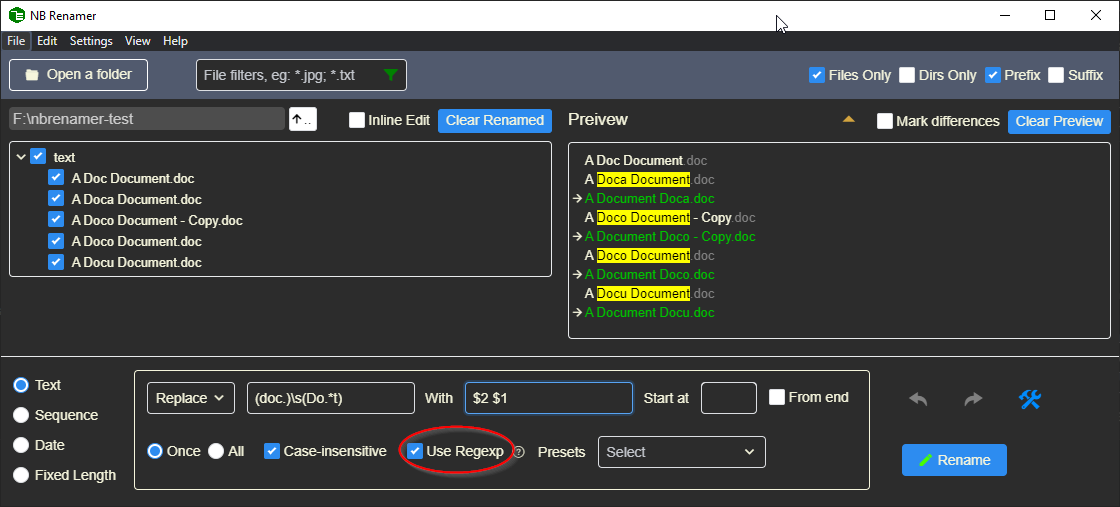
Tips💡:
- Don’t put starting and tailing / in the Regexp
- Don’t put /gi in the Regexp, tick All for /g and Case-insensitive for /i
Section
Previously called Fixed Length (v0.1). Handling by position instead of text.
Sequence
Insert / delete / replace sequence.
Parameters:
- Digits
Minimum sequence digits. E.g. Digits is 3, then sequence 1 will be padded with 0s like001.
When Digits is 0, it means to DELETE the sequence found. In Insert operation, Digits is always greater than 1. - Step
The increment / decrement step of the start number. E.g. Start is 1, Step is 2, then the sequence will be1, 3, 5…
When Step is 0 in Re-Sequence, it means to adjust the sequence digits only.
E.g. existing sequence in file names is1, 2, 3…, and Digits is 3, Step is 0, then the new sequence will be001, 002, 003… - Start
The starting value of the sequence.
Date
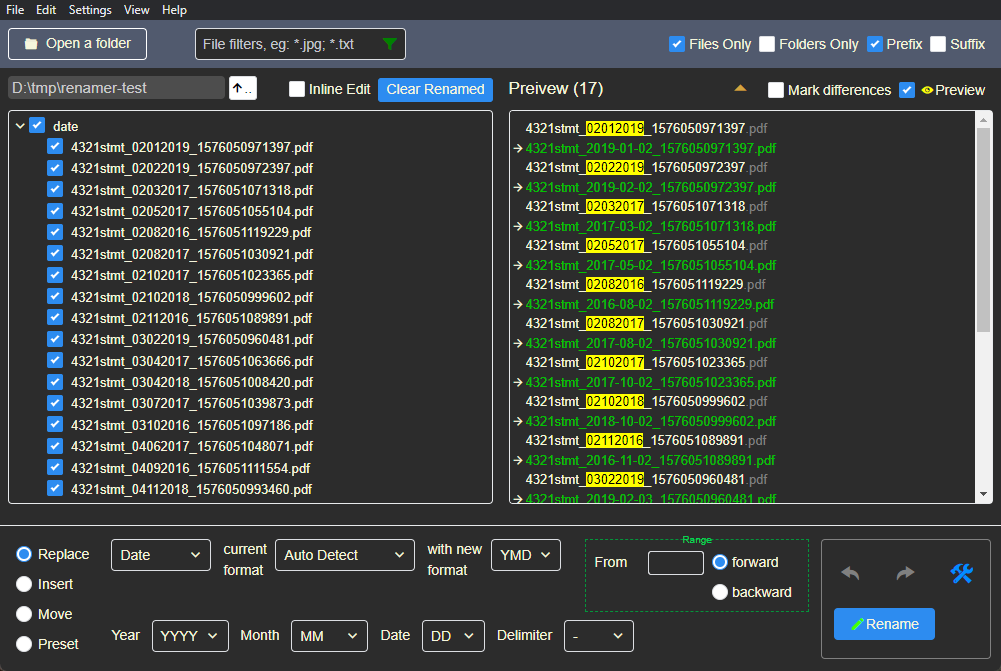
Find the dates element in file names and reformat them.
-
current format
Auto Detect should work most of the times. However can specify from the dropdown list if ambiguous. -
wiht new format
The new year/month/day format -
Year
4 digits / 2 digits / no year -
Month
2 digits / 3-letter abbreviation (eg. Aug) / full name / no month -
Date
2 digits (with leading 0 if necessary) / 1 digit (no leading 0) -
Delimiter
- . _ (Space)
Currently Date type only supports English locale and the above 4 delimiters. For other delimiters, you’ll have to first replace it with one of the supported delimiters and then change it back after the dates re-formmating.
Batch Renaming Using a CSV File
In some cases, you may find it convenient to define just a comma / tab delimitered file for batch renaming, especially when there are weak / no patterns in the names.
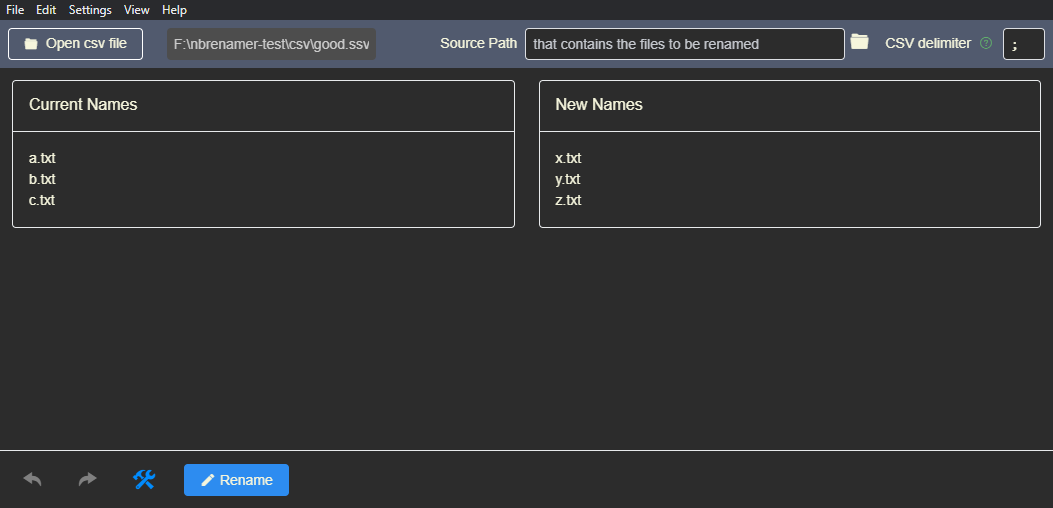
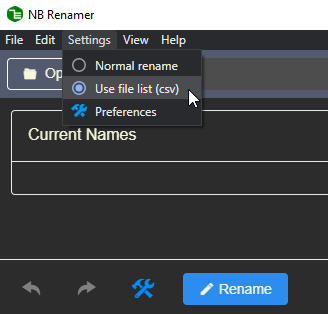
Switch to CSV mode
In menu Settings -> Use file list (csv). To switch back, go Settings -> Normal rename.
CSV format
The file just needs two columns:
Current File Name, New File Name
…
For example:
a.txt,x.txt
b.txt,y.txt
c.txt,z.txt
DO NOT put a header line.
Delimiters
, (Tab) ; | etc. can be automatically recognized. You can also specify it here:

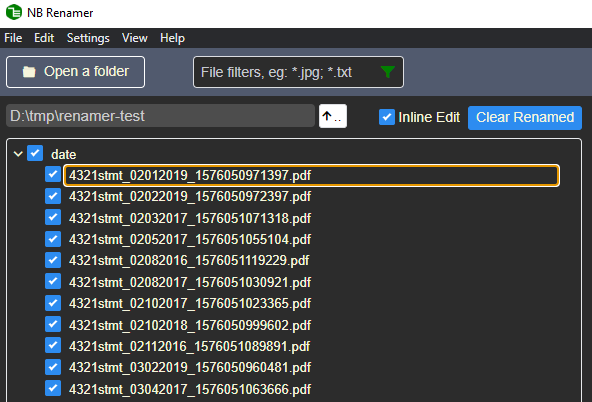
Adhoc Renaming
Tick the Inline Edit, you can directly edit the file names in a much quicker way than in Windows Explorer.
Preferences
Access Preferences via Settings -> Preferences menu or the  button in app’s Control Panel.
General
- Theme
Choose between built-in Dark and Light themes. - Auto Preview
Automatically preview the result when any changes are made. Suggest to turn on. - Sort Alphanumericly
It looks more natural to have an alphanumeric order of A1, A2, A3, A10 than A1, A10, A2, A3. Suggest to turn on. - Reset to default
Restore default settings.